Observer Quickstart
Alpha Access Required
Lucid is in private alpha. Request access before proceeding.
Deploy a secure AI environment using the Observer web interface. No CLI installation required.
What is Observer?
Observer is Lucid's web-based dashboard for deploying, monitoring, and managing AI environments. It provides:
- One-click deployment of AI environments
- Real-time monitoring of agents and auditors
- AI Passport viewer for compliance verification
- Environment management without CLI knowledge
Step 1: Access Observer
Navigate to observer.lucid.sh in your browser.
Step 2: Sign In
Choose your authentication method:
- Email/Password - Sign in with your credentials
- Google - Sign in with your Google account
- Microsoft - Sign in with your Microsoft account

Step 3: Deploy an Environment
- Click the Deploy button in the navigation bar
- Select Serverless deployment mode (default)
- Configure your environment:
Choose an App
Select from the verified app catalog:
| App | Category | Description |
|---|---|---|
| Open WebUI | Chat | ChatGPT-style interface |
| OpenHands | Autonomous Dev | AI coding assistant |
| Dify | Agent Builder | No-code AI workflows |
| LobeChat | Chat | Modern chat interface |
Choose a Model
Select a TEE-enabled model:
| Model | Context | Best For |
|---|---|---|
| Llama 3.1 8B | 128K | Fast responses, lower cost |
| Llama 3.1 70B | 128K | High quality, complex tasks |
| Qwen 2.5 72B | 128K | Multilingual, reasoning |
Choose an Auditor Profile
Select pre-configured auditor chains:
| Profile | Auditors | Recommended For |
|---|---|---|
| chat | injection, toxicity, sovereignty | Chat applications |
| coding | injection, eval | Development tools |
| workflow | injection, soc2 | Automation platforms |
| customer | injection, toxicity, pii, soc2 | Customer-facing apps |
Choose a Region (Optional)
Select data residency if required:
- US - North America
- EU - Europe
- APAC - Asia Pacific
- Any - Automatic (default)
Step 4: Click Deploy
Click the Deploy button. Your environment will be ready in seconds.

You'll see:
- Connection URL - Direct link to your AI environment
- Environment ID - Unique identifier for management
- TEE Status - Confirmation of hardware attestation
Step 5: Access Your Environment
Click the Connection URL to open your AI application. The app is fully deployed and protected by the configured auditors.
Managing Environments
Dashboard View
The main dashboard shows all your active environments:
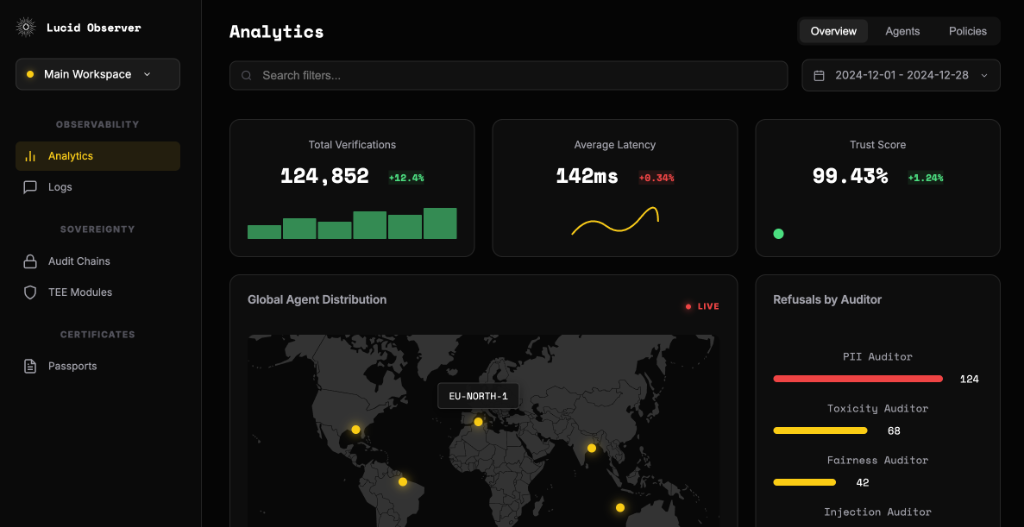
For each environment, you can see:
- Status - Running, stopped, or deploying
- App - The deployed application
- Model - The underlying LLM
- Auditors - Active security auditors
- Region - Data residency location
Environment Actions
Click on an environment to:
- View Logs - Real-time agent logs
- View Passports - AI Passport history
- Stop/Start - Control the environment
- Delete - Remove the environment
AI Passport Viewer
View cryptographic attestations for each inference:
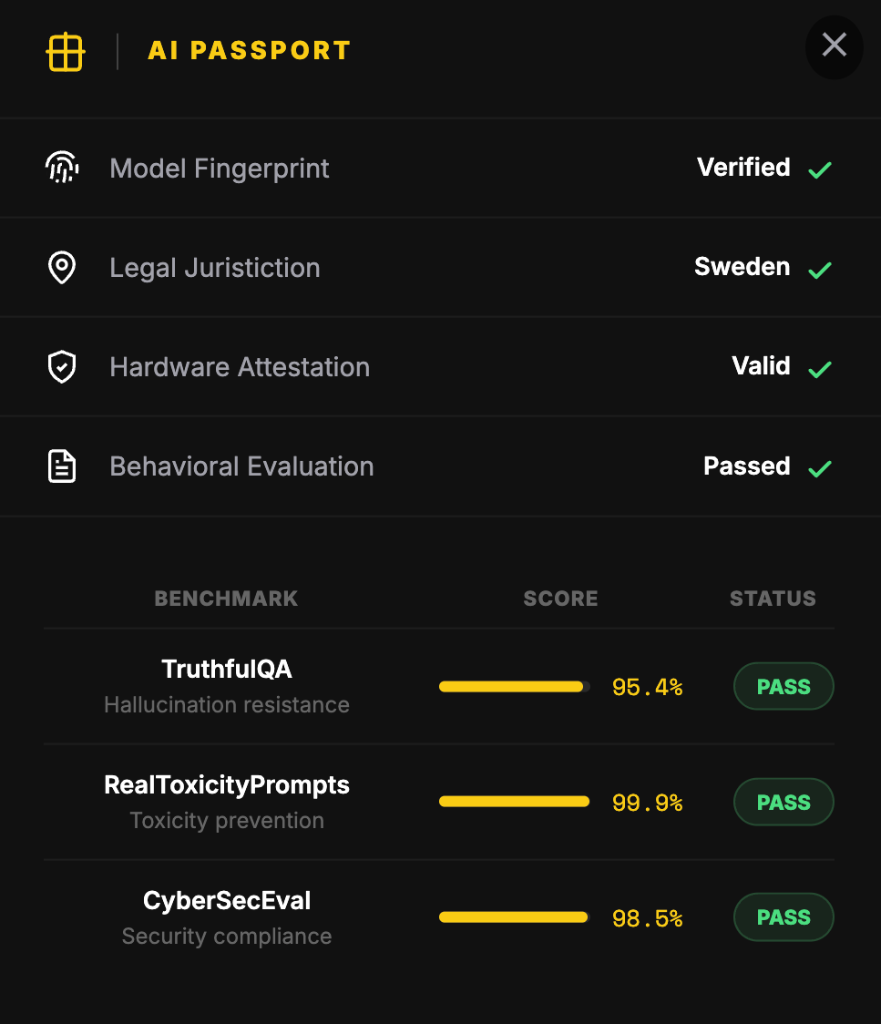
Each passport shows:
- Hardware Attestation - TEE verification status
- TEE Type - AMD SEV-SNP, Intel SGX, etc.
- Auditor Results - Pass/fail for each auditor
- Timestamp - When the inference occurred
Export Configuration
Export your environment configuration as YAML for version control or CLI deployment:
- Click on an environment
- Click Export YAML
- Save the
LucidEnvironmentfile
This YAML can be used with the CLI:
lucid apply -f exported-environment.yaml
Next Steps
- Serverless Quickstart - Learn the CLI for automation
- Authentication - Set up API keys
- Deployment Modes - Compare deployment options
- Auditor Catalog - Explore available auditors